DIRECTSIM Beta access
← Software catalog
Commercial

CockpitLink

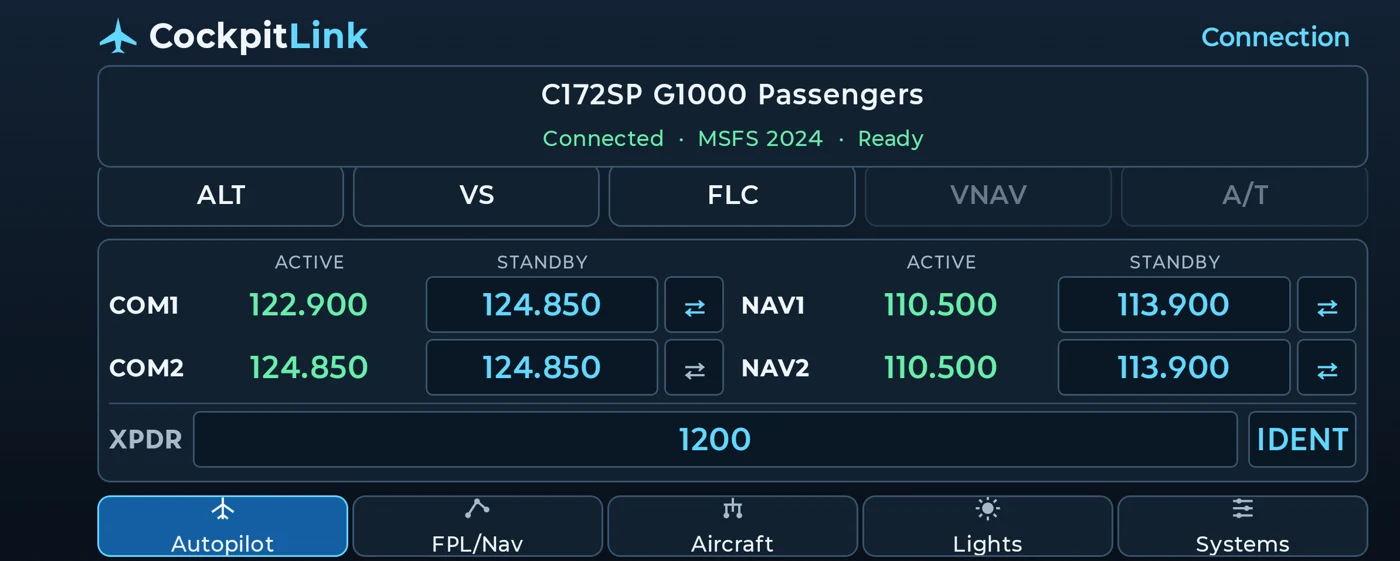
Use an Android phone or tablet to set autopilot targets, tune radios and enter a squawk through a Windows connector. Available systems follow the connected aircraft.
Android 10+ on local Wi-Fi; Windows x64 simulator PC, MSFS 2024 and local MSFS 2024 SDK Core. Both packages are required.
CockpitLink software screenshot
CockpitLink on Android

Capabilities

  • COM1/2 active and standby, keypad entry, swaps, four-digit squawk and IDENT; NAV1/2 on wide displays.
  • Supported COM channel spacing depends on receiver; live 8.33-kHz behavior tested on C172 G1000, 25-kHz validation simulated.
  • Prior C172 selected heading, altitude and flap tests passed. Multiple real devices and other aircraft are pending.

Installation

  1. Extract the connector ZIP into a new folder and run Start CockpitLink.cmd. Install MSFS 2024 SDK Core if the connector needs the local SimConnect DLL.
  2. Install the APK on Android 10 or newer and join the simulator LAN. Ethernet on the PC is supported.
  3. Use the normal connection mode on a shared subnet. On a routed network, use PC Calls Phone and enter the phone’s Wi-Fi address in the connector. Follow the pairing prompts and check for Ready.
Get support
INTERACTIVE DEMO

Tune the cockpit radio

Try CockpitLink’s COM1 workflow. Choose a standby frequency, then transfer it to active.

COM1 ACTIVE122.900
COMMERCIAL STOREFRONT

One CockpitLink license

Both planned purchase options unlock the same CockpitLink features and include access to the Windows connector.

DirectSim Store

Purchase directly, download the Android APK and Windows connector, then activate your license.

Google Play

Install the Play edition and unlock CockpitLink through Google Play Billing. Your verified purchase grants the same feature set.

Pricing to be announced · Commercial release pending

Purchase library →

Version history

No published builds yet.